Task Center - PC
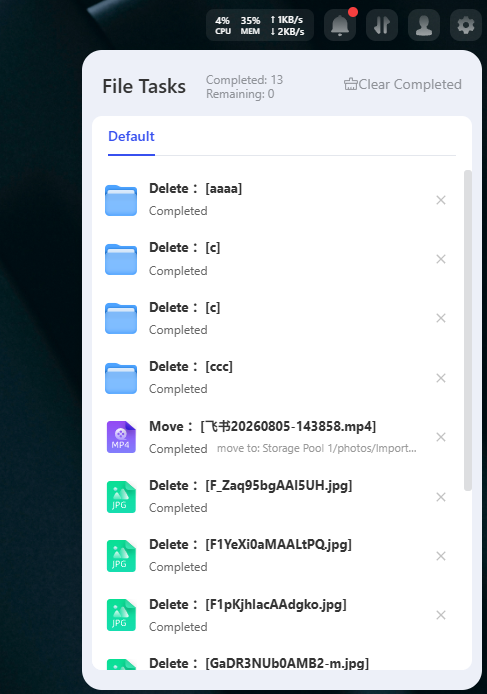
This interface is used to manage file-related tasks on the PC. It includes a "Default" tab and allows you to view task statuses and clear the history. The interface is simple and intuitive.
一、Core Features Description
Tab Features
- Default: Displays tasks related to local files (such as copying, deleting, etc.); you can view task status, progress, and reasons for failure.
Tab Features
-
Completed: The task was executed successfully, and the files were processed as required.
-
Failed: An error occurred during task execution; the reason for the failure will be noted (e.g., insufficient permissions, network interruption, etc.).
-
Pending: The number of tasks currently being executed or awaiting execution.
Cleanup Complete
- Click the "Clear Completed" button in the upper-right corner to delete all task records with the status "Completed" in one click.
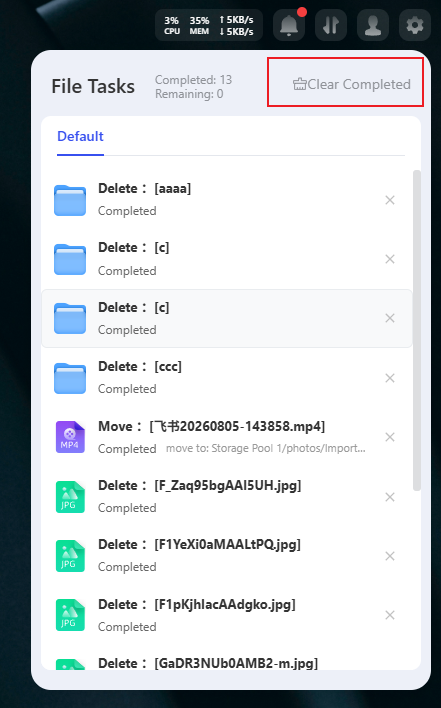
- The cleanup operation only deletes the task history; it does not affect local or cloud-stored files that have already been processed and completed.
二、User Guide
-
View Tasks: View tasks on the "Default" tab to see information such as task names, statuses, and target paths.
-
Stop a Task: Click the "×" button to the right of a task to stop a task that is currently running or pending.
-
Clear History: Click the "Clear Completed" button; after confirming, all completed task history will be cleared, helping to keep the interface organized.
三、Important Notes
-
Once you clear completed tasks, the records cannot be recovered. Please confirm that you no longer need to retain them before proceeding.
-
For failed tasks, the reason for failure will be recorded; you can use this information to troubleshoot the issue (e.g., if there is a permission issue, adjust the file access permissions).
-
Do not force-close the interface while a task is running to avoid task interruption or file corruption.